




How to Sell Shipping Protection as an Add-On in Shopify?


Table of Contents
Shipping issues are part of ecommerce. Packages get lost, damaged, or stolen, and the cost doesn’t always stop at replacing the product. For Shopify merchants, adding shipping protection at checkout can give customers an option to cover these risks while helping reduce the impact of delivery problems on the business.
In this guide, we’ll walk through how to add shipping protection to your Shopify store, from choosing a provider and setting up the add-on to pricing it and handling claims.
In this blog:
How to Add Shipping Insurance to Your Shopify Store
Step 1: Choose a Shipping Insurance or Protection Provider
There are two practical ways to add shipping insurance to a Shopify store: use a dedicated shipping protection app, which is the easier option for most merchants, or create your own insurance add-on as a product through an app or custom theme setup.
Use a Shipping Insurance App (Recommended)
For most Shopify merchants, using a dedicated shipping insurance or protection app is the easiest way to add coverage without building the entire system yourself. Shopify's App Store has several options, but they don't all work the same way. Some provide licensed insurance and handle claims, while others let merchants run their own shipping protection program.
A few options worth considering include:
- Navidium Shipping Protection: A good fit for merchants who want to run their own shipping protection program. It lets you customize the protection fee and widget, display the offer in the cart or checkout, and manage claims through its platform. Navidium specifically states that it is not an insurance company and does not underwrite claims, so merchants should understand that distinction before choosing it.
- Route – Protection & Tracking: Better suited to merchants looking for a broader post-purchase solution. In addition to package protection, Route offers tracking and returns/exchanges, with licensed package protection for customers.
- InsureShield & CommerceShield: From UPS Capital Insurance Agency, this option combines shipping insurance with order-risk management. Its shipping protection covers eligible loss, damage, or theft across carriers and includes a claims portal and dashboard.
- Insureful Shipping Protection: Another Shopify option positioned around turning shipping protection into an additional revenue stream. It's currently listed as a Built for Shopify app with a free plan available.

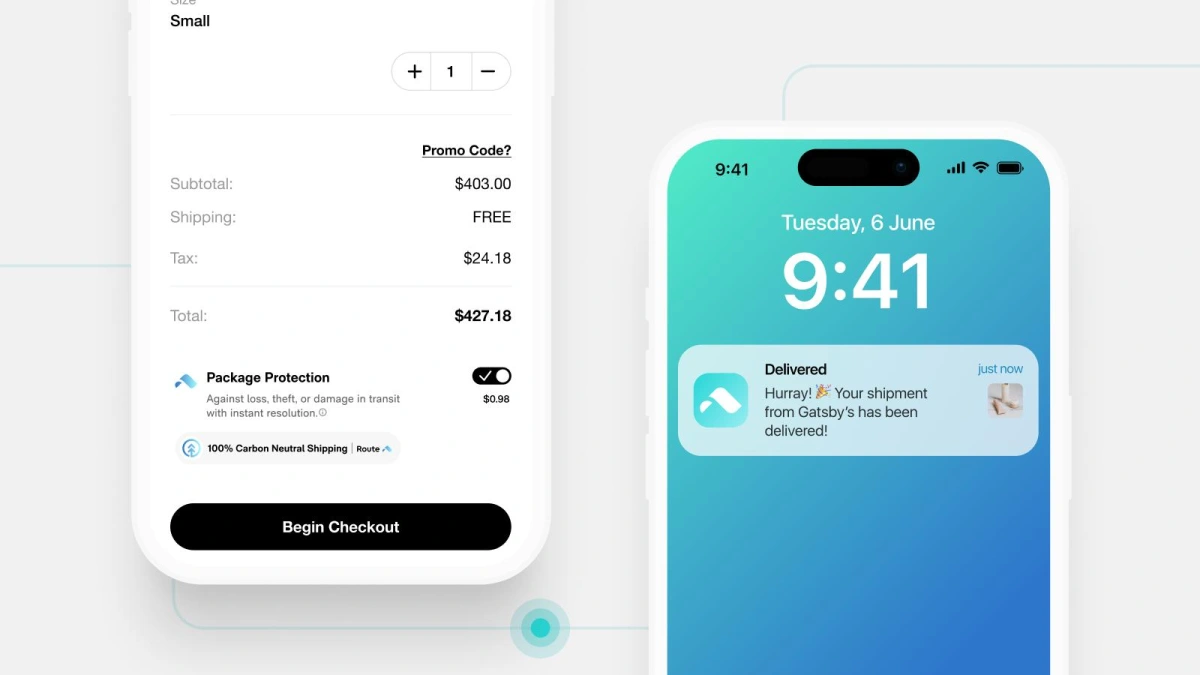
When comparing providers, look beyond the app's upsell features. Check who underwrites the coverage, what events are covered, who handles claims, where the protection offer appears, and how much control you have over pricing. Those details can make a significant difference in how much work the program creates for your team after a customer files a claim.
Add a Shipping Insurance Product via App/Theme (Custom Add-On)
If you want more control over how the add-on works, you can also treat shipping protection as a separate product or add-on in your store. For example, you could create a "Shipping Protection" product and use an upsell, cart, or add-on app to let customers add it alongside their order.
This approach gives you more control over the product name, price, placement, and presentation, but it also requires more careful setup. A basic product by itself does not automatically provide insurance coverage or connect the purchase to a claims process. You need to make sure the add-on is tied to the customer's order and that your protection terms clearly explain what the customer is purchasing.
Step 2: Install and Connect the App to Your Shopify Store
Once you’ve chosen a provider, install the app from the Shopify App Store and follow its setup flow. Most of the technical work is handled by the app, so you shouldn’t need to build the protection system yourself.
During setup, you’ll typically configure a few key settings:
- Eligible orders: Decide whether protection should be available on every order or only orders that meet certain conditions, such as a minimum order value.
- Shipping destinations: Choose which countries or regions can purchase protection, based on the provider’s coverage area.
- Protection pricing: Set the price customers will pay for the protection, or review the rate recommended by the provider.
- Cart or checkout placement: Choose where the protection offer appears in the buying journey, depending on what the app supports.
- Claims process: Check how customers submit claims and what your team needs to handle when a claim is filed.
I recommend paying extra attention to the pricing, coverage, and claims process before you launch. The add-on should be easy for customers to understand, while the claims workflow should be simple enough for your team to manage when something goes wrong.
You should also check how the app connects each protection purchase to the Shopify order. This makes it easier to identify covered orders and handle claims, refunds, or replacements later.
Step 3: Set Up the Shipping Insurance Add-On
The next step is to turn shipping protection into a clear, optional add-on customers can understand at a glance.
Start with the protection fee and decide how you want it presented. Depending on the provider, you may be able to use a fixed fee, a percentage of the order value, or the provider’s suggested rate.
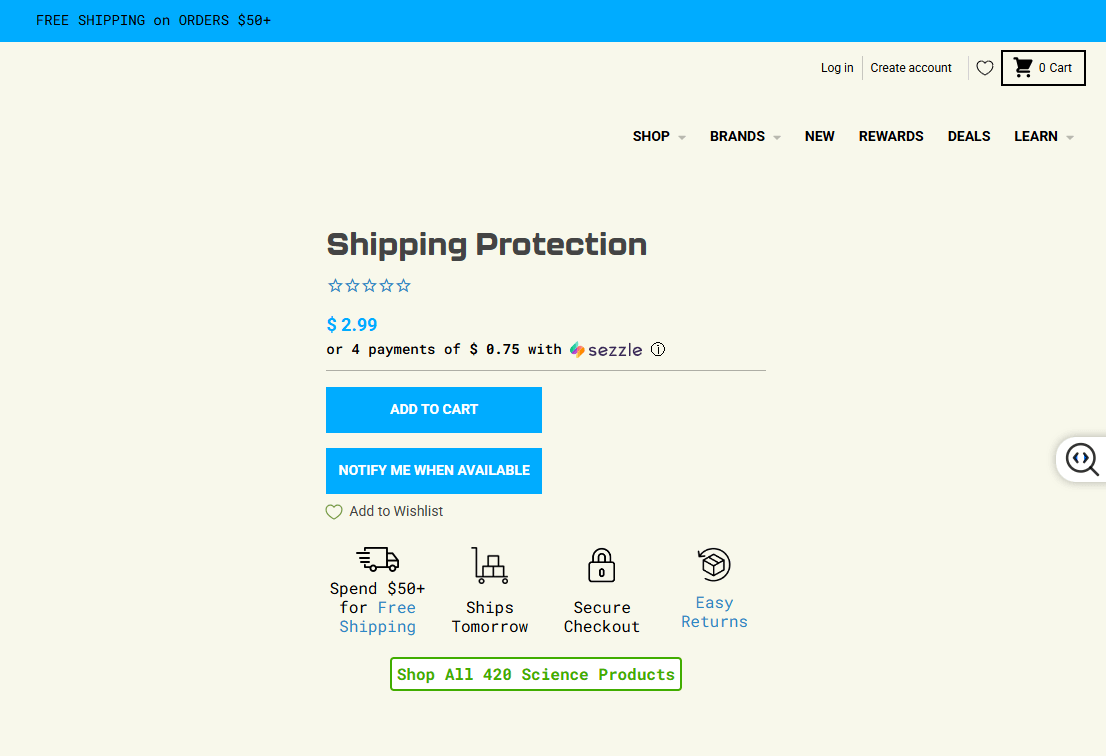
Then set the coverage and eligibility rules. Make sure you know which products, order values, and destinations are covered, and whether any exclusions apply.
The customer-facing message matters too. Keep it simple and specific, such as “Protect my order against loss, damage, or theft.” Avoid vague wording that makes customers wonder what they’re actually paying for.
I recommend keeping the add-on optional and making the coverage terms easy to access. Customers should understand the value without having to dig through a long policy before completing their purchase.
Step 4: Add the Insurance Option to Your Customer's Shopping Flow
Where you place the insurance option can have a big impact on how often customers actually choose it. Depending on the app and your Shopify setup, you can usually show it in the cart, checkout, or shipping step.
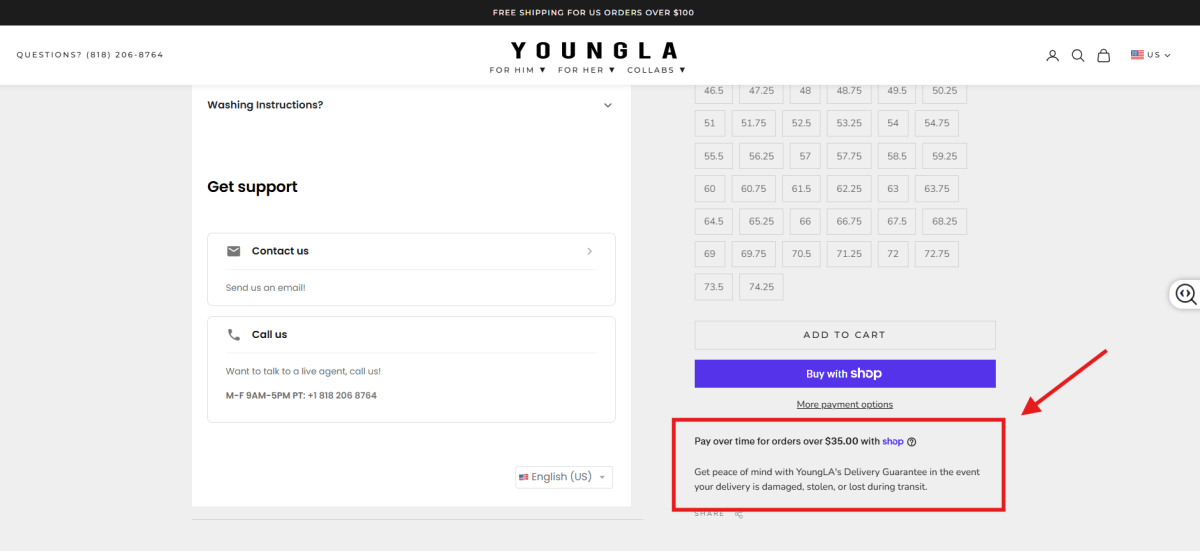
The key is to make the offer visible without getting in the way of the purchase. Keep the wording short, make it clear that protection is optional, and let customers easily opt in or out.
A good add-on should answer three questions quickly: What does it cover? How much does it cost? And do I need it? If customers can understand those points without leaving the shopping flow, you have a much better chance of getting the add-on without hurting conversion.
Step 5: Test the Customer Experience Before Going Live
Before you make the add-on available to every customer, place a few test orders and go through the experience from start to finish. A small setup issue can quickly turn into confused customers or messy refunds later.
Test both insured and uninsured orders to make sure the protection option appears correctly and the pricing is accurate. You should also check that the insurance is added and removed properly when customers change their selection.
Don’t stop at the checkout. Test what happens when an order is cancelled or refunded, and confirm how the protection charge is handled in each case.

How Much Should You Charge for Shipping Insurance?
For most Shopify stores, a good starting point is around $0.80 to $1.50 per order, or roughly 1.5% to 2% of the order value when shipping protection is offered as an optional add-on.
The right price depends on your average order value, shipping destinations, and how much it costs you or your protection provider to cover a claim.
Use Shopify’s Rates as a Pricing Benchmark
If you use Shopify Shipping with an eligible Grow, Advanced, or Plus plan and Shopify Payments, eligible US shipments can include up to $200 of shipping coverage at no extra cost.
For coverage beyond that, Shopify currently charges:
- $0.89 per $100 of value for domestic shipments
- $1.29 per $100 of value for international shipments
These rates are useful as a benchmark when you’re deciding how much to charge customers for additional protection.
Choose a Pricing Model That Fits Your Store
There are two straightforward ways to price the add-on.
- Flat fee: Charging around $0.98 to $1.25 per package keeps the offer simple. This works particularly well if your products have similar price points and your AOV doesn’t fluctuate much.
- Percentage-based: Charging around 1.5% to 2% of the order value makes more sense when your store sells products across different price ranges. The protection fee increases with the order value, so you’re not charging the same amount to protect a $50 order and a $500 order.
- You can also use a free protection threshold, such as offering it at no charge on orders over $100. This can make the add-on feel more valuable while giving customers another reason to increase their cart value.
The key is to keep the price low enough that customers see it as a reasonable add-on, while still covering the actual cost and risk of protecting those orders.
What Should Shopify Shipping Insurance Cover?
When you sell shipping insurance as an add-on, focus on the risks customers actually care about when their package is in transit. In most cases, that means loss, damage, and theft.
- Lost packages: The shipment never arrives or is confirmed lost by the carrier.
- Damaged items: The product arrives damaged during transit.
- Stolen packages: The carrier marks the order as delivered, but the package is later reported stolen, if theft is covered by your provider.
That gives customers a simple reason to pay for the add-on: if something goes wrong with the delivery, they have a way to recover the value of their order.
The catch is that coverage varies by provider. Check the policy for exclusions around product types, order value, destinations, carriers, and delivery circumstances before you decide what to promise customers.
How to Handle Shipping Insurance Claims
The real test of shipping protection isn’t selling the add-on. It’s what happens when a customer actually needs to use it.
Keep the claims process as simple as possible. Ideally, your provider handles most of the claim work, while your team focuses on helping the customer and keeping the order moving.
Make the Claim Process Clear
Customers should know where to file a claim, what information to provide, and how long they have to submit it. Depending on the provider, they may need the order number, tracking details, photos of damage, or other supporting evidence.
Don’t make customers dig through your site to figure this out. Put the claims instructions somewhere easy to find after purchase.
Check the Claim Against Your Coverage
Before promising a refund or replacement, check whether the order actually meets the provider’s coverage terms.
Look at the tracking status, order details, shipping destination, and reason for the claim. For damaged products, check whether the required evidence has been provided.
This is where having clear coverage terms upfront pays off. Your support team should be able to quickly answer one question: Is this claim covered or not?
Resolve the Customer’s Issue Quickly
Once the claim is approved, move quickly on the customer side. That might mean a refund, replacement, or whatever resolution your protection provider supports.
The insurance provider may handle the reimbursement, but the customer still sees your store as responsible for the experience. A fast, transparent response can make a bad delivery experience much easier to recover from.
The best setup is one where the customer knows exactly what to do, your team knows what to check, and the provider handles the claim without creating extra work for your store.

Final Thoughts
Selling shipping insurance on Shopify can be a simple way to give customers more confidence when placing an order, while giving your store another layer of protection against delivery issues.
It won’t make sense for every product or every store. But if you’re dealing with higher-value orders, long-distance shipping, or frequent loss and damage claims, offering protection can be worth considering.
The goal isn’t to convince every customer to buy it. It’s to give them the option when the added peace of mind is worth the extra cost.

Rosie Doan is a Senior Content Specialist at TrueProfit with over 4 years of experience creating content for the ecommerce and SaaS industry. Having worked closely with Shopify merchants and ecommerce businesses, she has developed a deep understanding of the challenges store owners face, from growing revenue and acquiring customers to tracking performance, managing costs, and improving profitability.