How to Set Up and Optimize Google Shopping Ads for Shopify


Table of Contents
- 1. How to Set Up Google Shopping Ads for Shopify
- 2. How to Optimize Your Google Shopping Product Feed
- 3. How to Choose the Right Google Shopping Campaign
- 4. Google Shopping Ads Bidding Strategies to Make the Most of Your Budget
- 5. How to Optimize Google Shopping Ads Performance
- 6. How to Measure the Profitability of Google Shopping Ads Accurately
- 7. Final Thoughts
- 8. FAQs About Google Shopping Ads for Shopify
For Shopify merchants, Google Shopping Ads offer a way to reach shoppers actively searching for products, but campaign performance depends on everything from your product feed to your bidding strategy.
In this guide, you'll learn how to set up and optimize Google Shopping Ads while keeping your store's profitability in focus. Let’s get started!
In this blog:
- 1. How to Set Up Google Shopping Ads for Shopify
- 2. How to Optimize Your Google Shopping Product Feed
- 3. How to Choose the Right Google Shopping Campaign
- 4. Google Shopping Ads Bidding Strategies to Make the Most of Your Budget
- 5. How to Optimize Google Shopping Ads Performance
- 6. How to Measure the Profitability of Google Shopping Ads Accurately
- 7. Final Thoughts
- 8. FAQs About Google Shopping Ads for Shopify
How to Set Up Google Shopping Ads for Shopify
Here’s how to work through each step.
Step 1. Connect Shopify to Google and YouTube
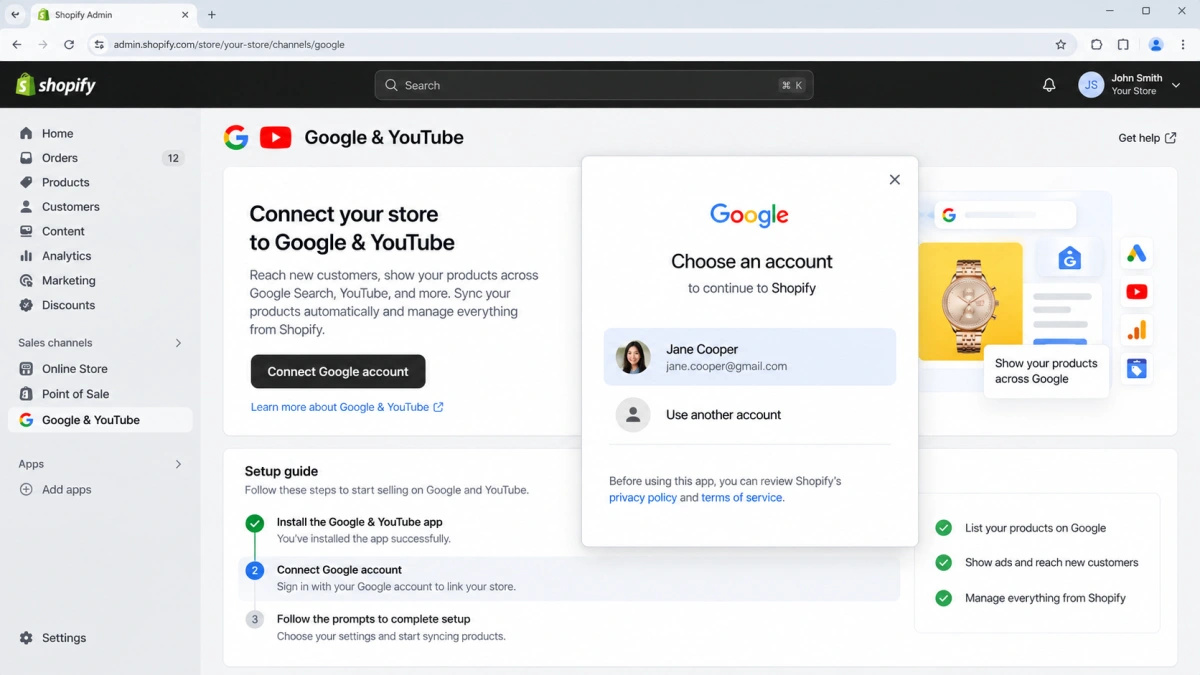
The easiest way to connect your Shopify store to Google is through the Google & YouTube app in the Shopify App Store. It connects your store to Google's services and syncs product information without requiring you to build a product feed manually.
To get started:
1. Install the Google & YouTube app from your Shopify admin.
2. Select Connect Google Account and sign in with your Google account.
3. Follow the prompts to connect your store and grant the necessary permissions.
If you already use Google Merchant Center or Google Ads, make sure you connect the accounts you intend to use for your campaigns. This will save you from having to sort out account access later.

Step 2. Set Up Google Merchant Center
Google Merchant Center is where Google retrieves the product information it needs to display your listings in Shopping Ads. Once your account is connected, take a few minutes to make sure your store details are in order.
Focus on these essentials:
- Verify your website and business information. Complete the verification and website claiming steps when prompted.
- Set your target country and language. Make sure they match the market you want to reach and your product data.
- Configure shipping and returns. Keep these settings consistent with the policies on your Shopify store.
- Review your store policies. Ensure customers can easily find your contact information, refund policy, and terms of service.
You can create a new Merchant Center account through the Google & YouTube app or connect an existing one. If you already have an account, use it where eligible rather than creating a duplicate.
Step 3. Sync and Review Your Product Feed
With Merchant Center connected, the Google & YouTube app can sync your Shopify products to Google. However, a successful sync doesn't guarantee that every product is eligible to run ads. It's worth reviewing your listings before spending money on a campaign.
Pay particular attention to the following:
You can check product status through Merchant Center or the Google & YouTube sales channel in Shopify. Fix any disapprovals before launching, and give Google time to process updates after making changes.
Step 4. Link Merchant Center with Google Ads
Your product catalog is managed in Merchant Center, but your paid campaigns are managed in Google Ads. Linking the two allows Google Ads to access your eligible product listings.
If you haven't linked them yet, open the Google & YouTube app in Shopify and look for the Google Ads section on the Overview page. Follow the connection prompts, select the correct Google Ads account, and authorize access.
Step 5. Configure Conversion Tracking
Before launching, make sure Google Ads can track the purchases generated by your campaigns. Without reliable conversion data, you won't have a clear picture of which campaigns drive sales or enough information to guide automated bidding.
For Shopify stores, the Google & YouTube app can help configure conversion measurement. Once connected, check that the following are working correctly:
- Purchase tracking: Completed orders are recorded as conversions.
- Conversion values: Order values are passed correctly so you can evaluate revenue and ROAS.
- Primary conversion actions: Purchases are used as the main optimization signal for campaigns focused on sales.
- Duplicate tracking: Existing Google tags or other tracking setups aren't recording the same purchase more than once.

How to Optimize Your Google Shopping Product Feed
Even with a well-structured campaign, weak product data can limit visibility or attract shoppers who aren't likely to buy. Focus on making your listings accurate, relevant, and appealing before increasing your ad spend.
1. Write Product Titles That Match Search Intent
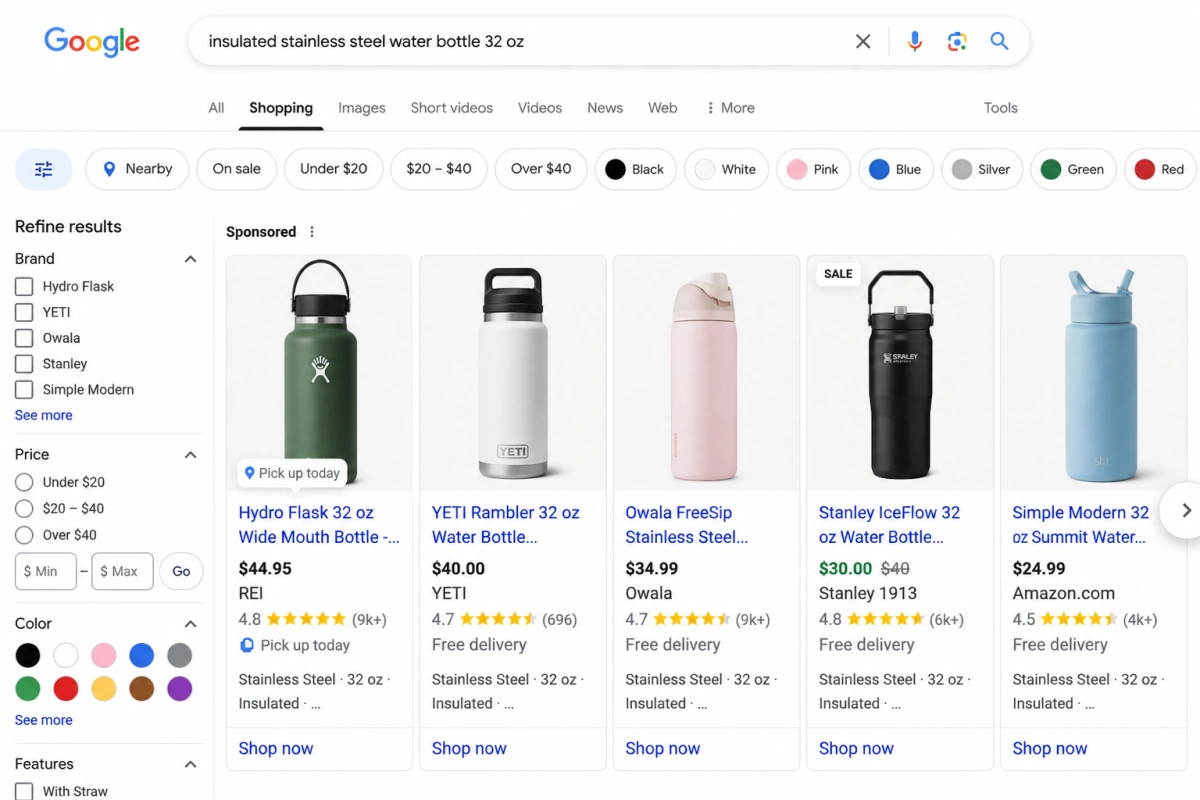
Your product title helps Google understand what you're selling and helps shoppers decide whether your listing matches what they're looking for. Put the most important product details near the beginning such as product type, brand, size, color, or material, where they're more likely to be seen.
For example, instead of using a vague title like “Everyday Bottle,” use a more descriptive title such as “Insulated Stainless Steel Water Bottle, 32 oz.”
2. Use High-Quality Product Images
Shopping Ads rely heavily on visuals, so your main image should make the product easy to recognize at a glance.
- Use clear, high-resolution images that show the actual product.
- Choose a clean main image without promotional text, watermarks, or decorative borders.
- Add supplementary images showing different angles, details, or the product in use where appropriate.
Make sure your images follow Google's requirements. Google has also announced a minimum image size of 500 × 500 pixels for product images, with enforcement beginning January 31, 2027.
3. Complete Product Attributes and Identifiers
Don't overlook the additional information that helps Google distinguish your products from similar listings. Include accurate brand, GTIN, MPN, color, size, and other relevant attributes where applicable.
For products with multiple variants, make sure each variant has the correct information and that related variants are grouped appropriately. If a product genuinely has no assigned GTIN, don't invent one. Follow Google's identifier requirements for that product type instead.
4. Keep Product Data Consistent With Your Store
Your feed and Shopify product pages should tell the same story. If Google displays one price but shoppers see another on your website, you risk losing trust and running into product eligibility issues.
Check that:
- Prices and availability match your product pages and checkout.
- Sale prices are correctly submitted and displayed.
- Product titles, descriptions, and selected variants accurately represent the linked product.
- Shipping information reflects your actual policies.
Keeping this information up to date helps prevent avoidable disapprovals and gives shoppers a more consistent buying experience.
5. Monitor Merchant Center Diagnostics and AI-Generated Images
Feed optimization isn't a one-time task. Products can develop issues when prices change, inventory runs out, or required information becomes outdated.
Check the Products and Diagnostics sections in Google Merchant Center regularly. Fix disapprovals first, then review warnings that could affect product visibility. Prioritize best-selling and high-potential products to keep important listings eligible to serve.
If you use AI-generated product images, pay extra attention to product accuracy. For AI-generated images, also preserve the original image metadata, including the IPTC DigitalSourceType value when it identifies generative AI creation. Don't remove this metadata when editing or exporting images.
How to Choose the Right Google Shopping Campaign
When setting up Google Shopping Ads, you'll mainly choose between Standard Shopping and Performance Max.
So, what is the difference between standard shopping vs. performance max?
When to Use Standard Shopping
Standard Shopping is a good fit if you want more control over how products are grouped and how bids are managed. You can segment products by attributes such as brand, product type, or item ID, making it easier to compare performance across your catalog.
This approach works well when you want to test specific products or make more hands-on adjustments based on campaign data.
When to Use Performance Max
Performance Max lets Google automate bidding and distribute ads across multiple eligible channels. Alongside your product feed, you can provide images, headlines, descriptions, and other creative assets to support ad delivery.
It's worth considering if you want to reach potential customers across Google's channels without managing separate campaigns for each placement. Keep in mind that automation doesn't guarantee better results. Your product data, conversion tracking, budget, and creative assets still matter.
Google Shopping Ads Bidding Strategies to Make the Most of Your Budget
Set a Budget You Can Afford to Test
For a small store, $100-$300 per product can serve as an initial testing allowance, although the right amount depends on your product price, expected cost per acquisition (CPA), and profit margins.
- Test one product:
Start with a capped budget of around $100-$300 to assess traffic, purchase intent, and early conversion performance. Compare ad spend with your break-even CPA rather than judging the product on clicks alone.
- Test additional products:
Set aside another $100-$300 for each new product you want to test, provided this amount is reasonable relative to its expected CPA and your margins. For example, testing three additional products would require a separate budget of $300-$900. Test a few products at a time if your overall budget is limited.
- Scale proven products:
Once a product generates consistent purchases at a profitable CPA, increase its daily budget by around 10%-20% at a time and reassess performance before making further changes. For a campaign spending $50 per day, that means increasing to 55-60 per day. Continue scaling only while POAS and net profit remain healthy.
Choose the Right Bidding Strategy
Google Shopping offers several bidding strategies, and each serves a different purpose. Choose one based on what you want to achieve and how much conversion data you have.
If you're just starting out, Maximize Clicks can help you understand how shoppers respond to your listings, but more clicks don't necessarily mean more sales. As your campaign gathers reliable purchase data, consider value-based bidding to focus on generating revenue rather than traffic alone.

How to Optimize Google Shopping Ads Performance
The key is to understand what's behind these results so you can focus your budget on the products and changes most likely to pay off.
1. Identify Which Products Need Attention
Start by reviewing product-level performance in Google Ads, including impressions, clicks, conversions, and conversion value. Then, compare these results with each product’s POAS and net profit to determine whether strong sales translate into meaningful returns.
- High impressions, low CTR: Review the product title, image, price, and relevance to shoppers’ search queries. These factors can influence whether shoppers click your listing.
- Many clicks, few purchases: Check search query relevance, product page quality, pricing, shipping costs, and checkout friction to identify what may be preventing purchases.
- High sales, low POAS: Strong revenue does not necessarily mean strong profitability. Review product costs, margins, and advertising efficiency before deciding whether to increase spending.
- High POAS and positive net profit: These products may be candidates for scaling. Increase budgets gradually and monitor whether profitability holds as ad spend grows.
2. Check Which Search Terms Spend Your Budget
Your ads may appear for searches that don't match what you're selling. Review the search terms report to find irrelevant queries that generate clicks without meaningful sales.
For example, if you sell premium dog beds, searches for DIY dog bed patterns are unlikely to bring in buyers. Add relevant negative keywords where supported to reduce wasted spend. On the other hand, search terms that consistently lead to purchases can reveal what shoppers are looking for and help you refine your product messaging.
3. Find Out Why Clicks Aren't Turning Into Sales
If shoppers click your ads but don't buy, check your product pages before changing your bids. A few things are worth reviewing:
- Make sure the landing page matches the product, price, and offer shown in your ad.
- Test page speed, product selection, and checkout on a phone.
- Check whether shipping fees or other charges appear late in the buying process.
- Confirm that purchases and their values are recorded correctly.
These checks help you determine whether the issue comes from the traffic you're attracting, the shopping experience, or your tracking setup.
How to Measure the Profitability of Google Shopping Ads Accurately
Google Ads shows the conversion value attributed to your campaigns, while Shopify records the orders and revenue flowing through your store. Neither view alone gives you the complete picture of how much profit your advertising generates after business costs.
That's why Shopify merchants need to connect ad performance with store-level profitability.
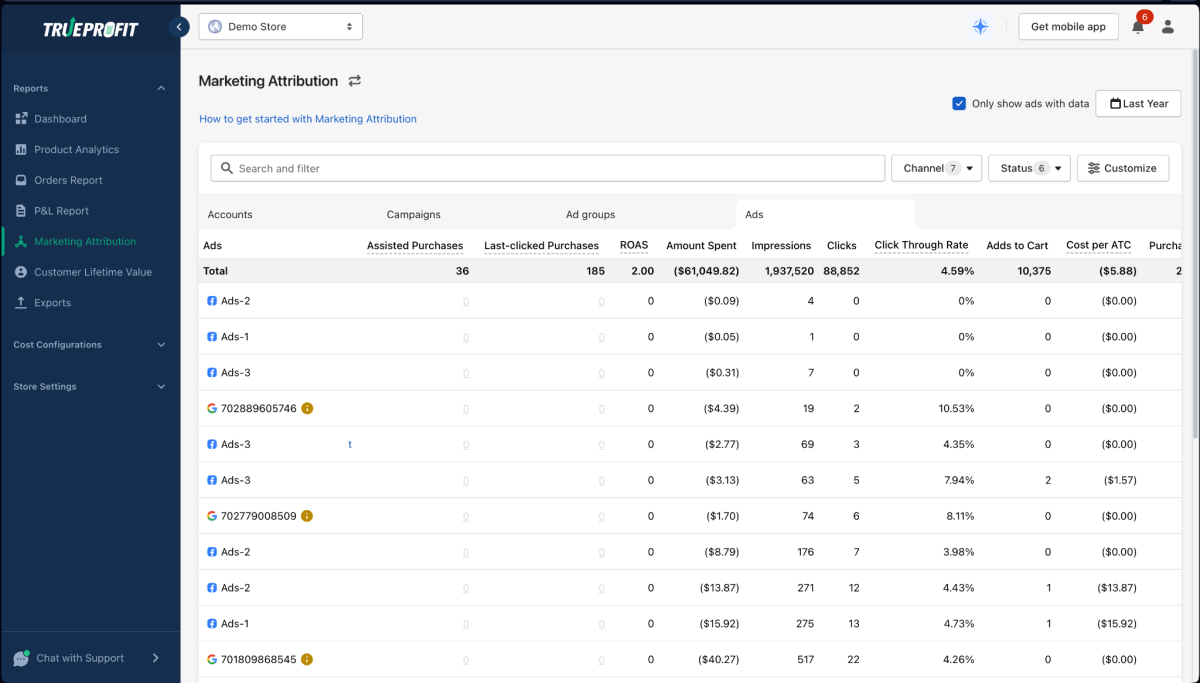
TrueProfit brings these numbers together in one place, combining advertising spend with sales, COGS, shipping, transaction fees, refunds, and other expenses to calculate your store’s true net profit.
TrueProfit’s marketing attribution feature helps you understand how much each advertising channel contributes to your store's conversions, including both assisted and last-clicked purchases, so you can evaluate each channel's true impact on sales and profitability.
With both views, you can identify promising campaigns more confidently and avoid scaling based on revenue or ROAS alone.
Final Thoughts
Google Shopping Ads can help Shopify merchants reach shoppers who are already looking for products like theirs. But long-term success takes more than getting products in front of the right audience. Your product data, campaign structure, budget, and shopping experience all influence how effectively your ad spend turns into sales.
With the right setup and a clear view of your results, you can build a Google Shopping strategy that supports sustainable growth, not just higher revenue.

Lila Le is the Marketing Manager at TrueProfit, with a deep understanding of the Shopify ecosystem and a proven track record in dropshipping. She combines hands-on selling experience with marketing expertise to help Shopify merchants scale smarter, through clear positioning, profit-first strategies, and high-converting campaigns.