Shopify Page Speed Optimization: Complete Guide to Speed, SEO, and Performance


Most Shopify store owners know page speed matters. Fewer actually do anything about it, usually because they're not sure where to start or what will move the needle.
This guide cuts through the noise. I'll walk you through how to measure your current performance, what's most likely slowing you down, and which fixes are worth your time, including ones that require zero coding.
Why Is Website Speed Important?
Even small improvements in site speed can create measurable business impact.
For User Experience and Conversions
From a visitor’s perspective, a slow website creates friction at every step. Instead of smoothly browsing your content, users are stuck waiting on a blank or partially loaded screen. Images load in late, buttons take longer to respond, and the layout shifts as elements slowly appear.
That lack of stability creates a quiet but strong sense of frustration, almost like the page isn’t fully under control.
And when people feel that lack of control, they don’t wait around.
They bounce, abandon carts, close tabs, and move on to a competitor who simply feels faster and easier to use. In many cases, the decision happens in seconds, long before they’ve even seen your value proposition.
For SEO, Ads, and Overall Business Performance
Page speed has a direct impact on both revenue and visibility. Research from Portent shows that ecommerce websites loading in around 1 second tend to convert significantly better, up to roughly 2–3× higher, compared to sites that take around 5 seconds to load.
It is also a key factor in Google Search rankings, so poor loading performance can directly lead to lower organic visibility and reduced search traffic, even if your content is strong.

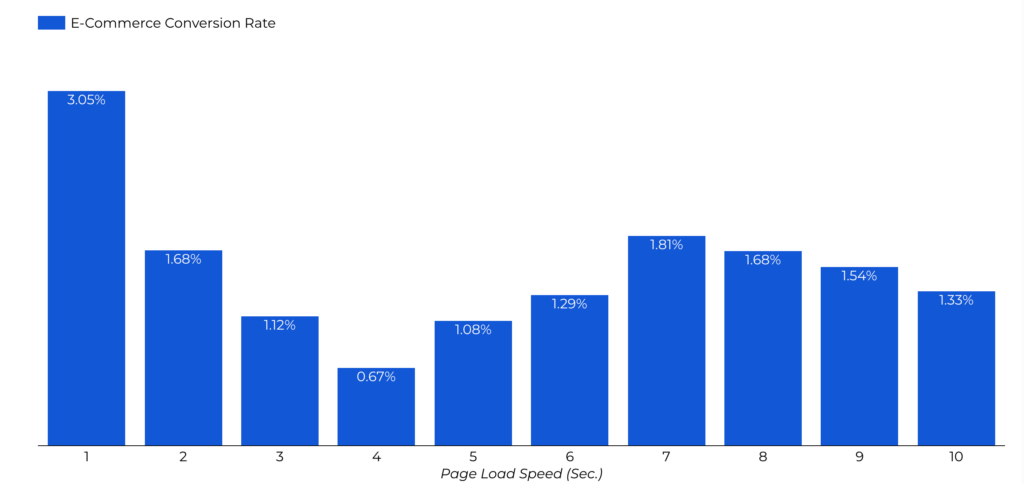
Source: Page Load Speed

How to Check Your Shopify Store Speed
There's no single tool that tells you everything. The best approach is to use a few in combination, starting simple and going deeper as needed.
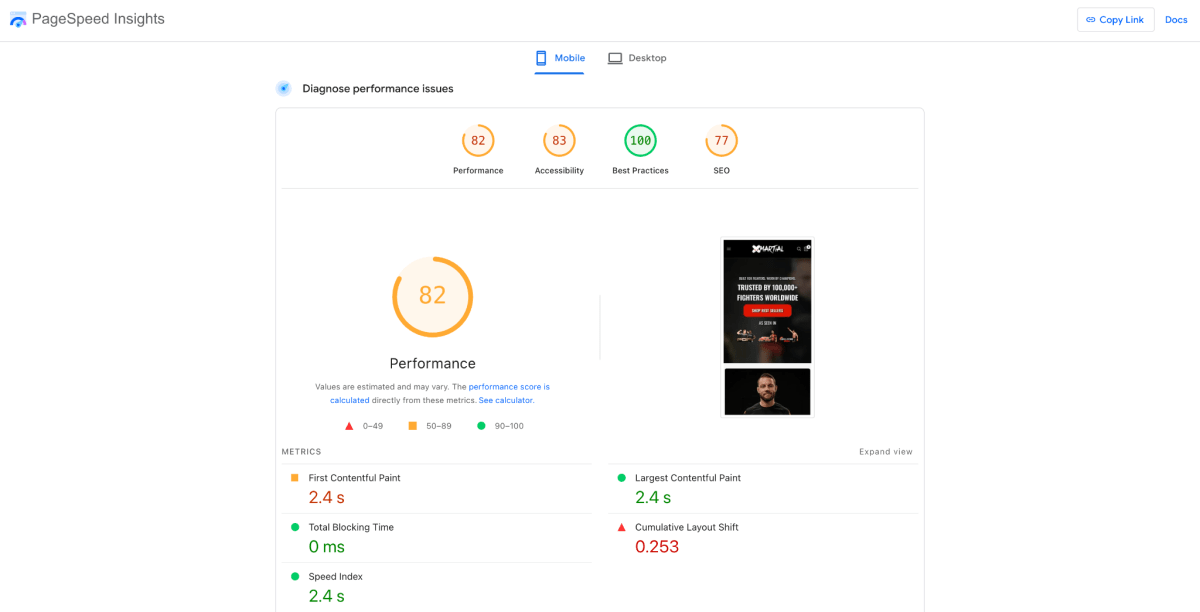
1. Run Google PageSpeed Insights
Google PageSpeed Insights is the most important external tool to use. It gives you both lab data and field data collected from real Chrome users, which makes it more reliable than the Shopify score alone. Always run the mobile version.
3. Review your Web Performance reports
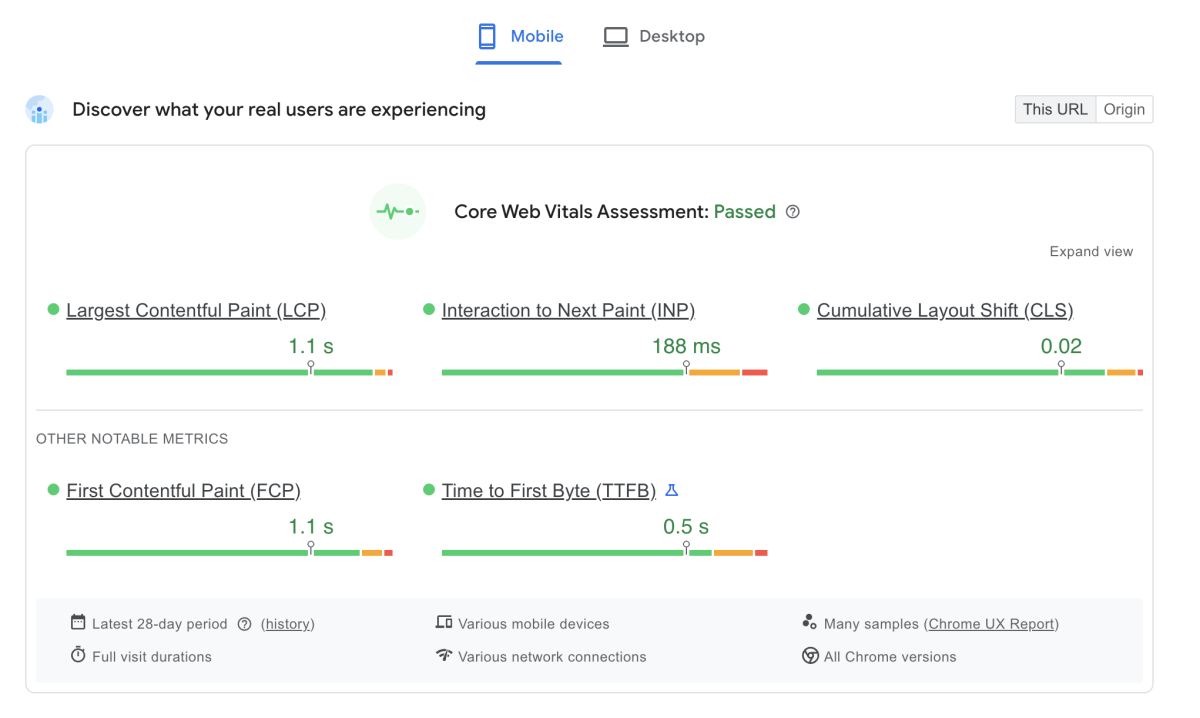
Shopify's Web Performance reports use Core Web Vitals to measure how real users experience your online store.
Core Web Vitals are confirmed Google ranking signals. They measure real-world user experience rather than simulated performance. There are five metrics you need to care about:
4. Use GTmetrix when you need more detail
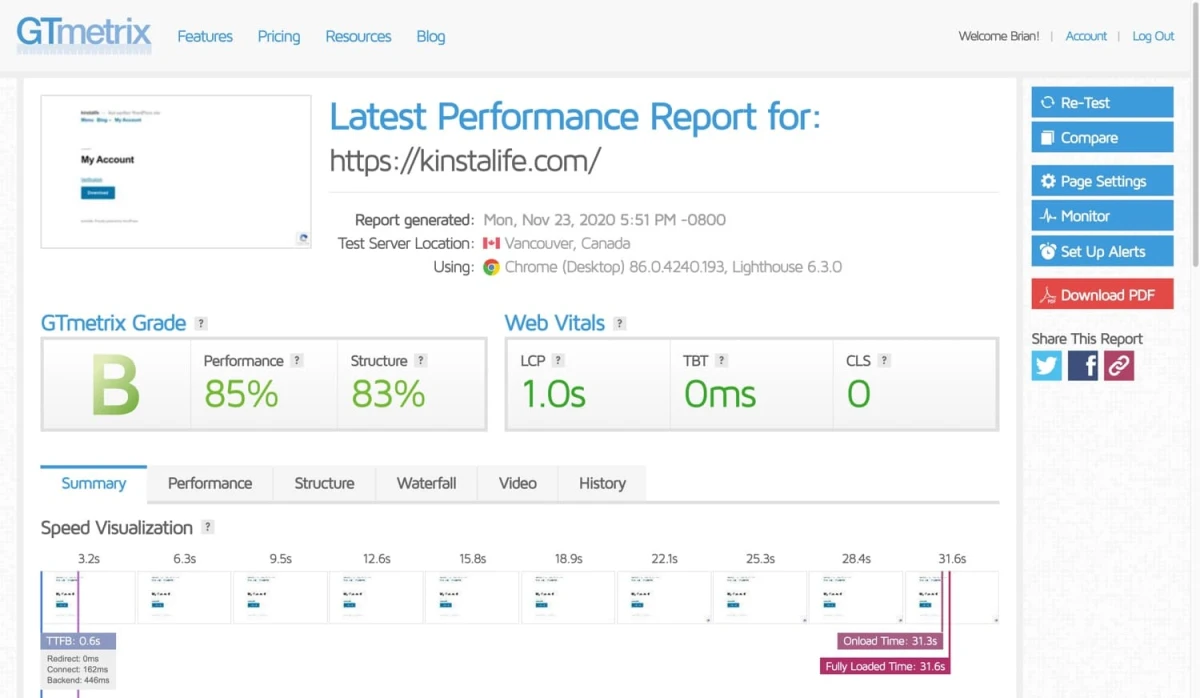
GTmetrix shows a waterfall chart of every file your page loads, in the order it loads. This is the fastest way to identify which specific scripts, fonts, or images are causing the most delay. If you're comfortable with browser developer tools, Chrome DevTools (Network tab) gives you the most granular view of all.
Step-by-Step Shopify Page Speed Optimization Checklist
Not every page on your store has the same level of impact. You should focus first on the pages that bring in the most revenue. That usually means your homepage, product pages, and collection pages. After that, you can go deeper into smaller improvements.
The goal is not to fix everything at once. It is better to start with the biggest problems that slow your store down.
1. Choose and configure a fast theme
Your theme has the biggest impact on store performance. It sets the baseline for how fast everything loads, so even small inefficiencies here can affect your entire site.
When choosing a theme, focus on simplicity and clean structure. A good Shopify theme should be lightweight, avoid unnecessary JavaScript, and use responsive image handling. It should also rely on Shopify’s Online Store 2.0 architecture, which uses JSON templates and modular sections. This setup gives you more control over what loads on each page and helps reduce unnecessary code.
Once your theme is installed, the next step is cleanup. Many stores keep features they never actually use, and those features can still affect performance even when hidden. Go through your theme carefully and remove anything unnecessary instead of just disabling it in the editor.
You should also turn off or remove elements that add extra load without clear value, such as autoplay sliders, large homepage carousels, page transition effects, or background videos.
2. Audit and cut apps
Start by opening your theme.liquid file and scanning it for script tags added by apps. Then use Chrome DevTools (Network tab) to see exactly which requests each service triggers. Some apps are surprisingly heavy for what they do.
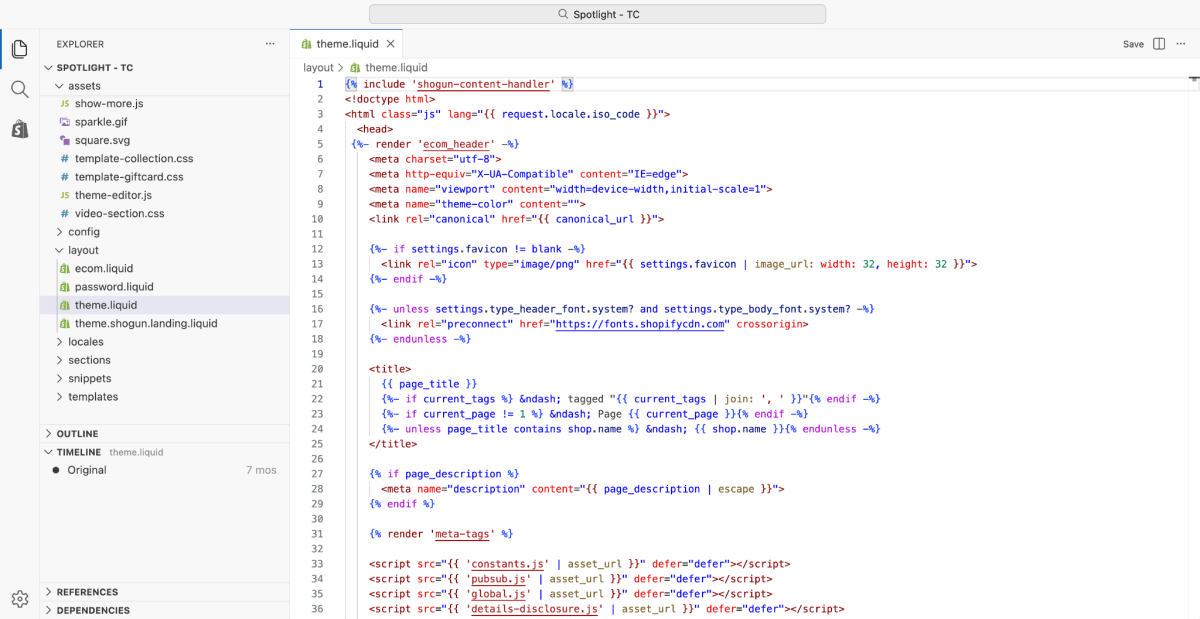
It is also important to understand how Shopify apps affect performance. Every app you install adds JavaScript to your store. Even if you are not actively using the app, it can still slow down your pages. In some cases, each app can add around 200–400ms of load time.
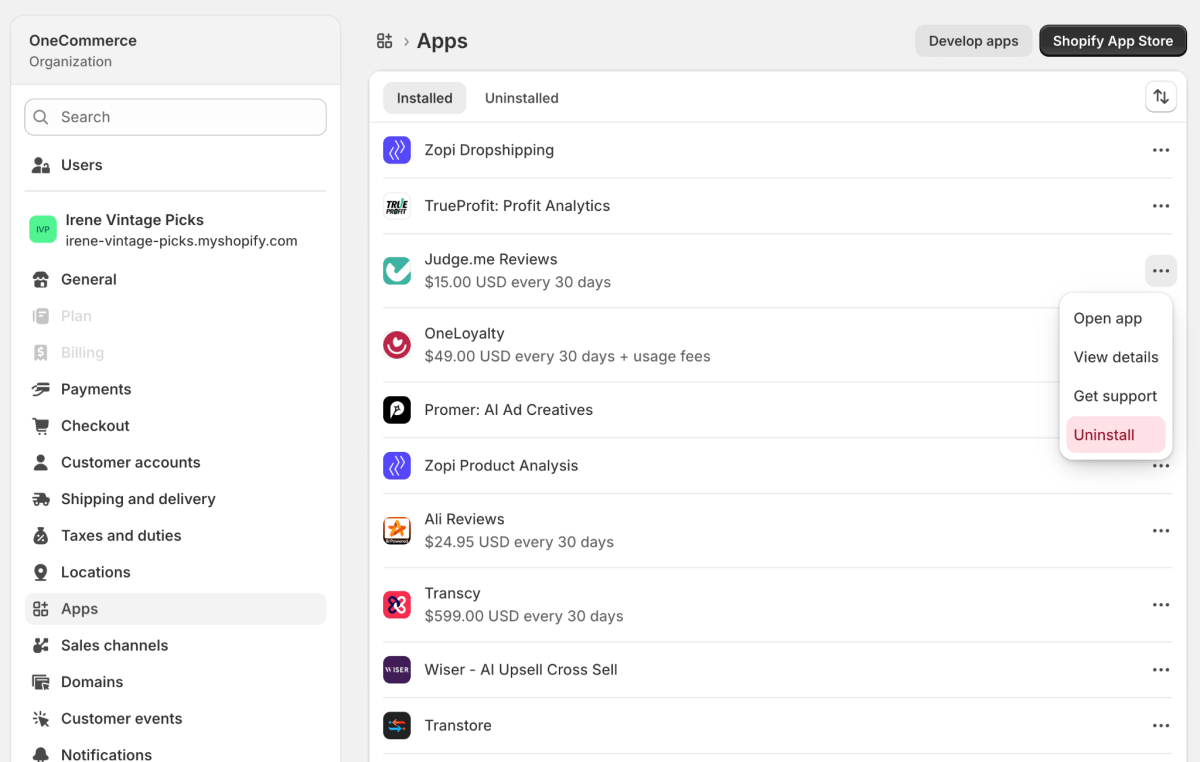
Because of this, it is worth reviewing your app list regularly. Go to Settings → Apps and remove anything you installed just to test or no longer use. Many Shopify stores end up with around 10–15 apps installed, even though only a few are actually needed. In most cases, a smaller set of around 5–7 well-chosen apps is enough.
3. Compress and properly serve images
In most Shopify stores, images are the highest-impact area for speed improvements. A few simple habits make a big difference:
- Resize images before uploading
Many stores upload images that are far too large for how they are actually displayed. For example, hero banners should usually stay under 2,000px wide, while most product images only need around 800px to 1,200px. Anything larger than that is often unnecessary.
- Compress files before uploading
Tools like Squoosh or TinyPNG can significantly reduce file size without noticeable quality loss. This alone can make pages load faster, especially on mobile connections.
- Use WebP where possible
Shopify’s CDN does help by converting images into WebP format for supported browsers, but that only works well if the original image is already optimized.
- Lazy load images below the fold
Lazy loading is another important step. Images that are below the first screen should only load when the user scrolls near them. This reduces the initial load time and makes the page feel faster right away.
4. Replace GIFs and fix video embeds
If you are using video on your homepage or product pages, avoid autoplaying it directly from Shopify. Instead, it is better to host the video on platforms like YouTube or Vimeo and embed it using a click-to-play thumbnail. This way, the video only loads when a user actually chooses to watch it, instead of slowing down the entire page from the start.
GIFs are another common issue. They may seem lightweight, but in reality they are often much larger than expected. In most cases, it is better to replace GIFs entirely. Converting them into MP4 or WebM format can reduce file size significantly while keeping the same visual quality. Many files can be reduced to under 500KB, which is a big improvement for something that is mostly decorative.
5. Clean up theme code
After uninstalling an app, check your theme.liquid, snippets, and asset files for leftover code. Many apps leave behind script or stylesheet references, and these can still slow your store down even after removal.
Remove anything that is no longer needed.
You can also simplify how your code loads. Too many small CSS and JavaScript files create extra requests and slow things down. Keep only what is needed for the first part of the page, and defer the rest when possible.
6. Simplify the above-the-fold experience
The content that loads before any scrolling happens should be as lean as possible. A static hero image, a clear headline, and one CTA button performs better than an animated slider, both in speed and in conversion rate.

Avoid stacking multiple app widgets above the fold. Chat prompts, pop-ups, and SMS opt-ins all compete to load at the exact moment your store is most vulnerable to losing someone's attention. Delay email capture pop-ups by at least three to five seconds after page load, or trigger them on scroll.
7. Prioritize mobile performance
Mobile makes up the majority of ecommerce traffic, yet mobile conversion rates consistently lag behind desktop. Part of that gap comes down to performance.
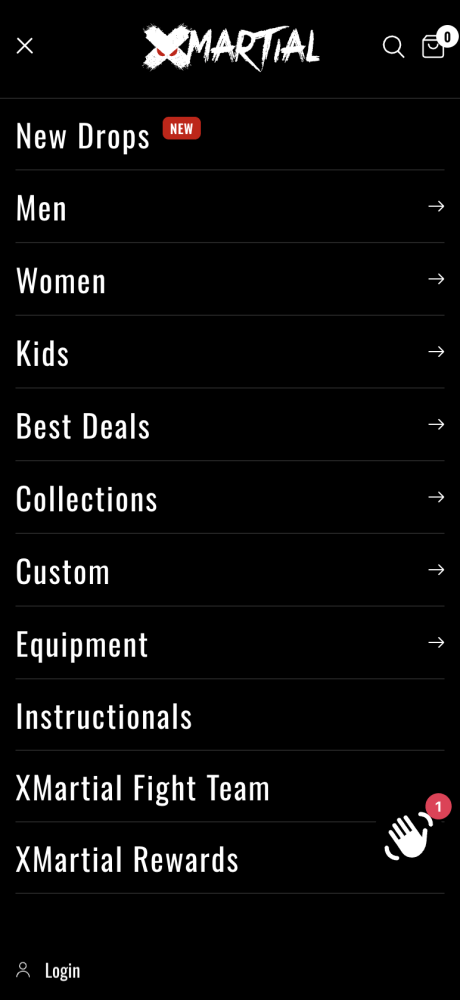
First, you could simplify mobile navigation by trimming menu levels and avoiding heavy mega-menus. Then reduce the height and complexity of above-the-fold sections on small screens. Cut scroll-triggered animations that fire JavaScript on every swipe, they feel like polish but cost you speed.
8. Monitor speed on a regular cadence
Speed optimization isn’t a one-time task, it’s an ongoing process that should be built into your store maintenance workflow.
Run performance checks on a monthly basis to catch gradual slowdowns before they affect conversions. In addition, always re-test your store after installing or removing apps, updating your theme, or making significant layout changes.
Keep a simple change log to track what was modified and how it impacted performance. This makes it easier to identify regressions and quickly roll back changes that hurt load speed.
9. Don’t chase fake “90+ PageSpeed”
A high PageSpeed score does not always translate into a faster experience for real customers. Some optimization tactics boost lab metrics without meaningfully improving real-world performance. Focus on making your store feel faster to shoppers, not just look faster in reports.
Top Shopify Speed Optimization Apps
If you prefer reducing manual optimization work, several Shopify apps can help automate common performance tasks. Keep in mind that speed apps should support your optimization efforts, not replace proper theme, image, and script management.
- Speed Optimizer AI: Helps automate performance tasks such as asset optimization, CSS/JavaScript handling, and reducing layout shifts where applicable.
- Booster Page Speed Optimizer: Uses techniques such as preloading and prefetching to improve perceived navigation speed and reduce delays between page transitions.
- Plug In Speed: Focuses on ongoing performance maintenance through image optimization, script management, and monitoring recommendations.

Final Thoughts
Speed issues rarely come from one big mistake, they build up slowly. A few extra apps, a couple of tracking scripts, heavier images, a bit more JavaScript… until the store feels slower without anyone noticing when it started.
That’s why performance work is less about “fixing” and more about protecting the store from unnecessary complexity as it evolves. Every new tool should earn its place not just functionally, but technically.
In the end, a fast Shopify store is usually just a disciplined one, where every addition is intentional, and nothing is left running without a clear reason.

Lila Le is the Marketing Manager at TrueProfit, with a deep understanding of the Shopify ecosystem and a proven track record in dropshipping. She combines hands-on selling experience with marketing expertise to help Shopify merchants scale smarter, through clear positioning, profit-first strategies, and high-converting campaigns.